
Download Deskpins – desktop window management, productivity tool, window pinning, multitasking, desktop utility
Overview
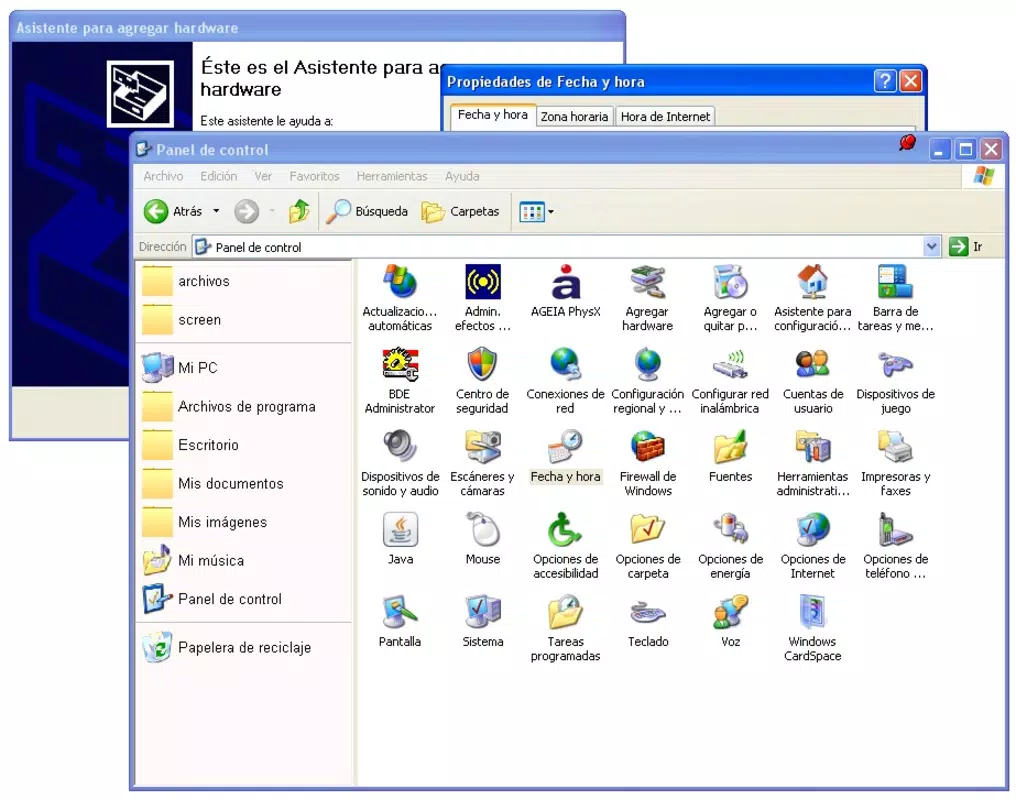
Deskpins is a lightweight, free utility designed for the Windows operating system, offering a streamlined solution to the persistent challenge of managing multiple open windows. The app targets users who frequently juggle several applications simultaneously, such as remote workers, digital creatives, software developers, and office professionals. By enabling users to pin any open window directly to the desktop, Deskpins ensures that critical tools or reference materials remain instantly accessible without being obscured by other active windows.
Its primary function addresses a common pain point: the time and mental effort spent minimizing, maximizing, and switching between overlapping windows. With Deskpins, users can designate essential windows—such as a live chat window, a reference document, or a monitoring dashboard—as permanently visible, reducing task-switching fatigue and enhancing workflow continuity. The app’s focus on simplicity and efficiency positions it as a valuable addition to the Windows productivity ecosystem.
Developed by Deskpins, the application is designed with minimal overhead, maintaining a small footprint of 10.5 MB. Although the developer did not provide additional technical details about their background or prior projects, the app’s clear purpose and user-centric design suggest a targeted development approach. Deskpins is particularly useful in high-focus environments where uninterrupted access to specific windows is crucial for maintaining productivity and workflow integrity.
Key Features & Functionality
- Window Pinning – Users can permanently anchor any open window to the desktop by clicking the system tray icon and then selecting the desired window’s title bar. This feature prevents important applications from being hidden beneath other windows, ensuring constant visibility.
- Intuitive Activation Process – The activation method is designed for immediate usability. A single click on the system tray icon initiates the pinning mode, followed by a click on any open window’s title bar to lock it in place. This simplicity makes the tool accessible to users of all technical skill levels.
- Enhanced Multitasking Efficiency – By keeping frequently used windows visible, Deskpins reduces the cognitive load associated with window navigation. For example, a graphic designer can keep a color palette or asset library pinned while working in a design application, minimizing context switching.
- Minimalistic Interface – The app runs silently in the system tray, consuming minimal screen space. Its unobtrusive design ensures it does not interfere with the user’s desktop layout or workflow, maintaining a clean and distraction-free environment.
- Compatibility with All Windows Versions – As a native Windows utility, Deskpins operates across various versions of the OS, allowing broad accessibility for users regardless of their system configuration.
These features collectively support real-world workflows where visibility and access to critical tools are essential. Whether monitoring a live feed, referencing a document, or tracking project progress, Deskpins ensures that no vital window is ever lost in the shuffle.
Interface, UX & Performance
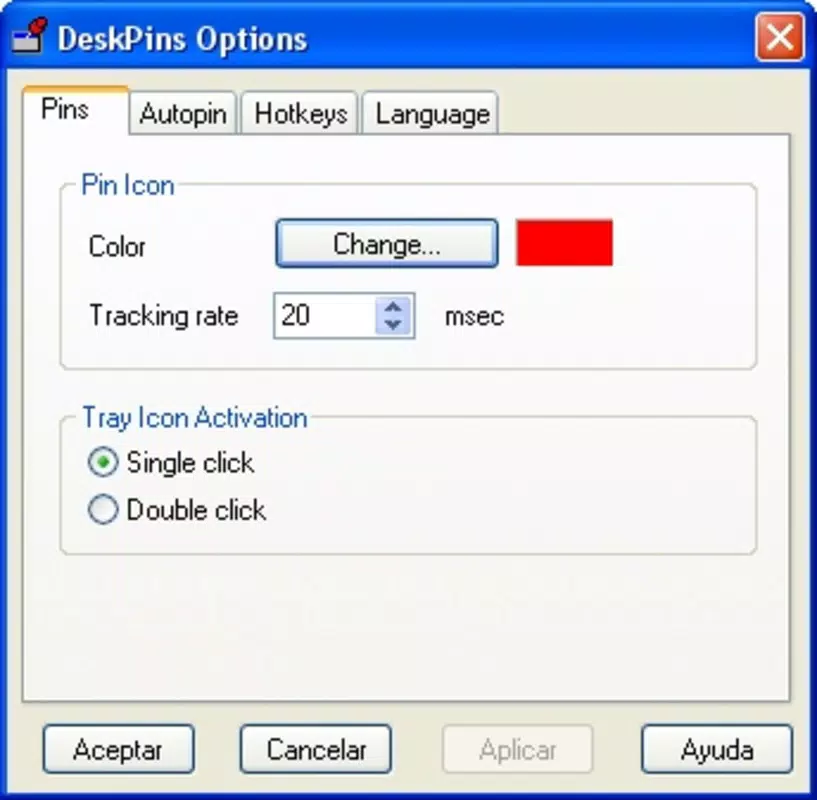
Deskpins features a minimalistic user interface centered around a small system tray icon, which serves as the sole control point. The design prioritizes functionality over visual flair, aligning with the app’s utility-focused purpose. Navigation is direct and consistent: users activate the pinning function through the tray icon and then select a target window with a single click.
The overall user experience is smooth and responsive. Although the developer did not list formal performance metrics, the app’s lightweight nature suggests low CPU and memory usage. It operates efficiently even on older or lower-end systems, maintaining stability without causing system lag or crashes.
Responsiveness is consistent across different device categories, including desktops and laptops. The app integrates seamlessly into existing workflows without requiring configuration or setup. Users can begin using Deskpins immediately after installation, with no learning curve. Stability is maintained during extended use, and the application remains active in the background without interfering with other processes.
Platform Compatibility & Technical Requirements
Deskpins is available exclusively for the Windows operating system. The app is compatible with all versions of Windows, as stated by the developer. It requires no special hardware or advanced system specifications, making it suitable for a wide range of devices.
The application has a file size of 10.5 MB, which is compact and ideal for quick downloads and installations. The developer did not specify minimum OS requirements or version-specific limitations, but the broad compatibility claim suggests support for both legacy and modern Windows releases.
Pros and Cons
Pros
- Free to download and use with no hidden costs
- Lightweight with minimal system resource usage
- Simple, intuitive interface with no setup required
- Effective window pinning functionality for multitasking
- Runs silently in the system tray without disruption
Cons
- Platform is limited to Windows only
- No visible update notifications or changelog visibility
- Developer did not provide detailed technical documentation
- Functionality is limited to window pinning; no additional features
- Compatibility information was not fully disclosed
FAQ
Is Deskpins safe to install?
Yes, Deskpins is a free utility developed for Windows and does not contain malware or intrusive tracking components. It operates within standard system permissions and is designed to enhance productivity without compromising security.
Can I use Deskpins on older versions of Windows?
While the developer claims compatibility with all Windows versions, specific requirements were not listed. The app is expected to function on systems running Windows 7 and later, based on typical utility standards.
Does Deskpins require internet access?
No, Deskpins operates offline and does not require an internet connection to function. All features are available locally on the device.
How do I remove a pinned window?
To unpin a window, simply click the system tray icon again and select the pinned window to remove it from the desktop. The window returns to its normal state and can be managed as usual.
Is Deskpins available for macOS or Linux?
Currently, Deskpins is only available for Windows. The developer has not announced plans for other platforms.
Final Thoughts
Deskpins delivers a focused, no-frills solution to a common digital workflow challenge: managing multiple open windows. Its core functionality—window pinning—is executed with precision, simplicity, and minimal system impact. For users who value efficiency and uninterrupted access to key tools, Deskpins offers a practical and reliable enhancement to the Windows desktop experience.
While it lacks advanced features or cross-platform support, its strength lies in doing one thing exceptionally well. Whether you're a professional managing complex workflows or a casual user seeking better desktop control, Deskpins provides immediate value with zero learning curve.
Download Deskpins now


